
If you need help with an order, product, delivery, return, refund, subscription, billing issue, or another concern, you can send a support request through our online form. Follow the steps below to submit your request correctly.
Step 1: Open the Support Request Form
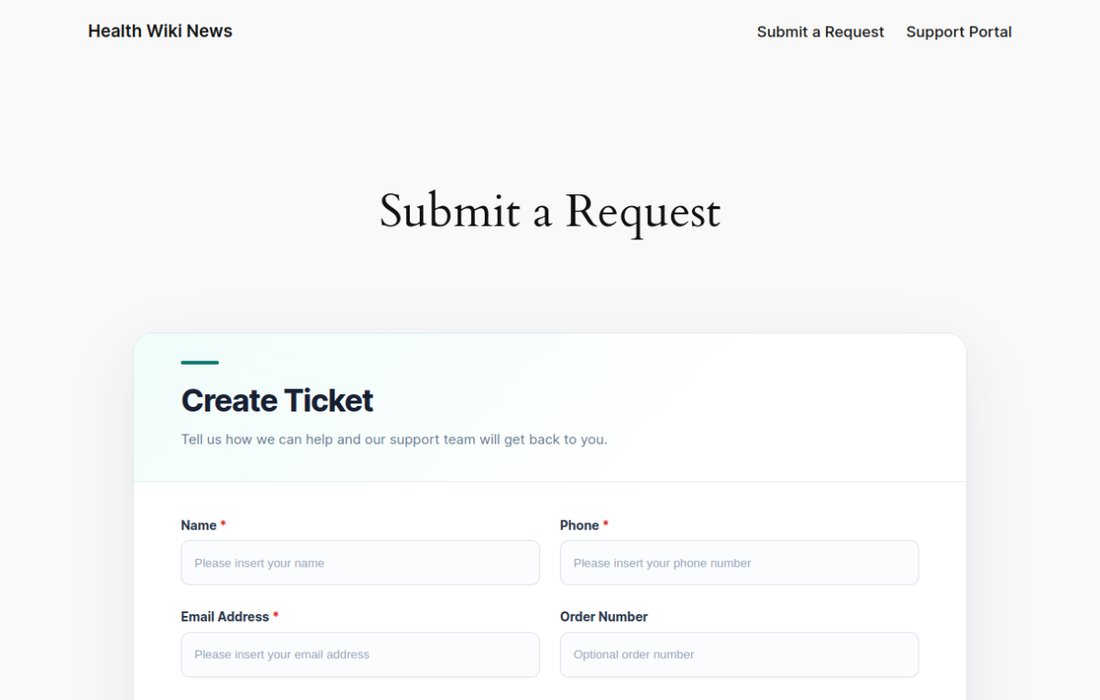
Visit the Submit a Request page. The “Create Ticket” form will appear.
Step 2: Enter Your Contact Information
- Name: Enter your full name.
- Phone: Enter a valid phone number where the support team can contact you.
- Email Address: Enter an active email address. Updates and replies regarding your request may be sent to this address.
- Order Number: If your request concerns an order, enter the order number. This field is optional, but providing it can help the support team locate your order faster.
Step 3: Describe Your Request
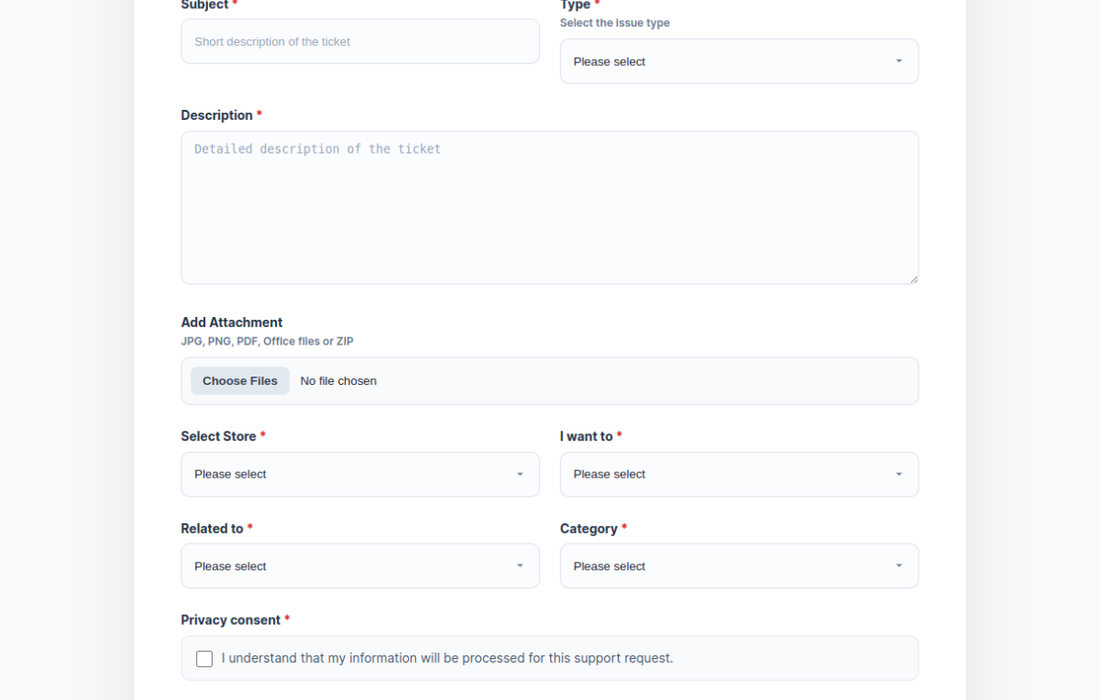
- Subject: Enter a short summary of your issue or question.
- Type: Choose the option that best describes your request, such as receiving the wrong item, returning an item, support, or something else.
- Description: Explain the issue in detail. Include relevant information such as the product name, purchase date, order details, and the solution you are requesting.
Step 4: Add Supporting Documents
If necessary, use the Add Attachment field to upload supporting files, such as product photographs, delivery images, invoices, or screenshots. The form accepts JPG, JPEG, PNG, PDF, DOC, DOCX, XLS, XLSX, and ZIP files. You may attach more than one file.
Step 5: Select the Correct Request Details
- Select Store: Choose the store or brand related to your request.
- I Want To: Select whether you want to make an inquiry, submit a request, file a complaint, or choose another option.
- Related To: Select the topic, such as Product, Order, Autoship Subscription, Delivery, Return, Refund, Technical Issue, or Other.
- Category: Choose the most suitable category, such as General, Order Support, Product Support, Delivery, Billing, or Returns.
Step 6: Accept the Required Agreements
Read and select both required checkboxes:
- Privacy Consent: Confirm that your information may be processed for the support request.
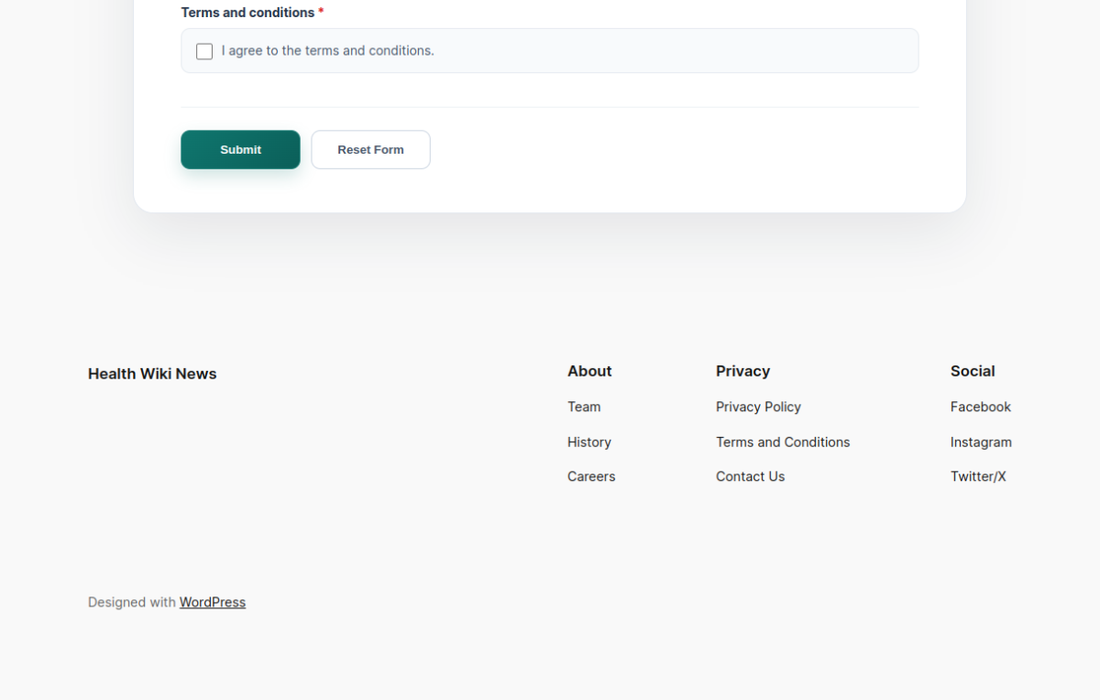
- Terms and Conditions: Confirm that you agree to the terms and conditions.
Step 7: Submit the Form
Review all the information you entered. Required fields are marked with an asterisk (*). When everything is correct, click Submit. If you want to clear the entered information and start again, click Reset Form.
Tips for a Faster Response
- Use a valid email address and phone number.
- Provide your order number whenever the request relates to a purchase.
- Write a clear subject and a detailed description.
- Select the correct store, request type, topic, and category.
- Attach clear photographs or documents when they help explain the issue.
- Submit only one request for the same issue to avoid delays or duplicate tickets.
Ready to contact support?
Include clear details and any helpful attachments so our team can understand your request quickly.
Open the Submit a Request form